 Add and edit deployments
Deployments are used to roll out concepts and schedules to a site or a batch of sites.
Create new concept
-
In the menu, click Light control.
-
If applicable, in the dropdown Select a customer, select the customer to show the known formats.
-
Select a format.
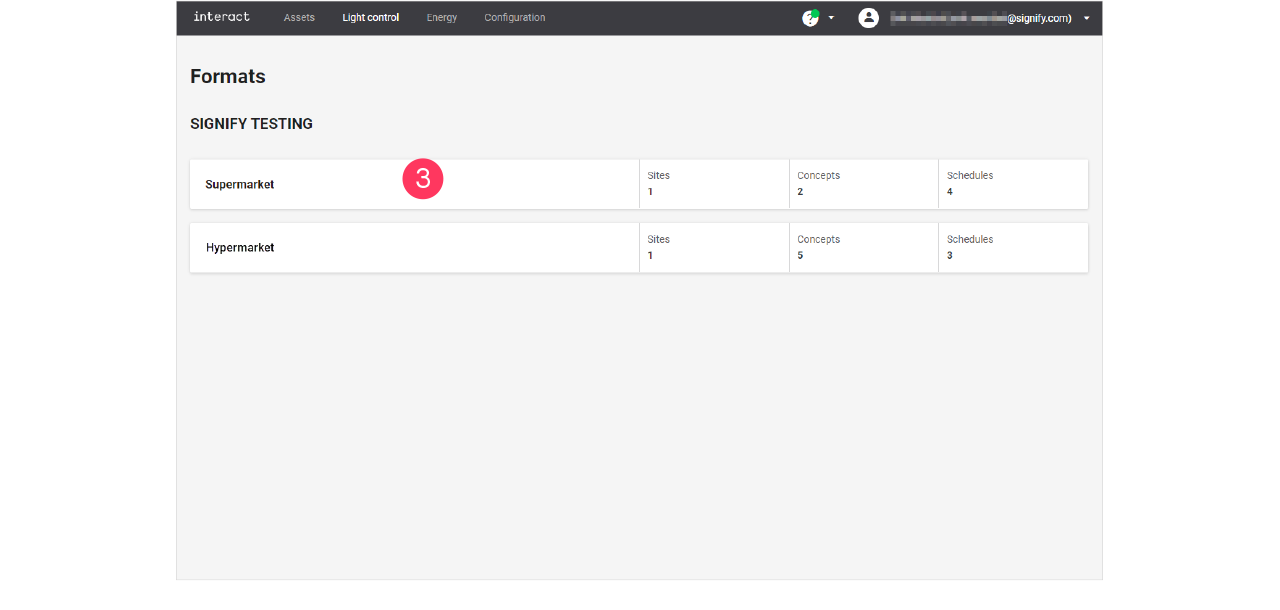
-
Click Concepts (
 ).
). -
Click + New concept.
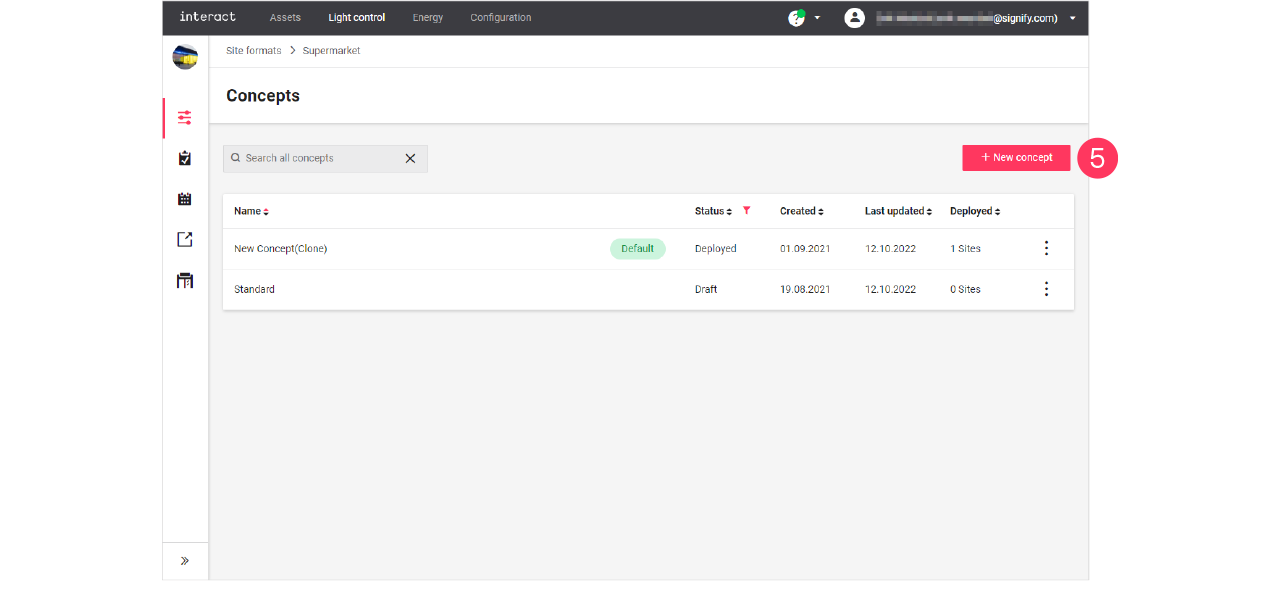
-
Enter the Name for the concept.
Click Create. The concept is now available with the status Draft. -
Click the concept and start editing.
Clone existing concept
When you want to reuse an existing concept, for example in case there are only some light levels to change, then you can clone a concept. Cloning is possible for concepts that are in Draft or Deployed status.
-
In the menu, click Light control.
-
If applicable, in the dropdown Select a customer, select the customer to show the known formats.
-
With the mouse, hover over the action menu icon (
 ) of the schedule to edit.
Click Clone.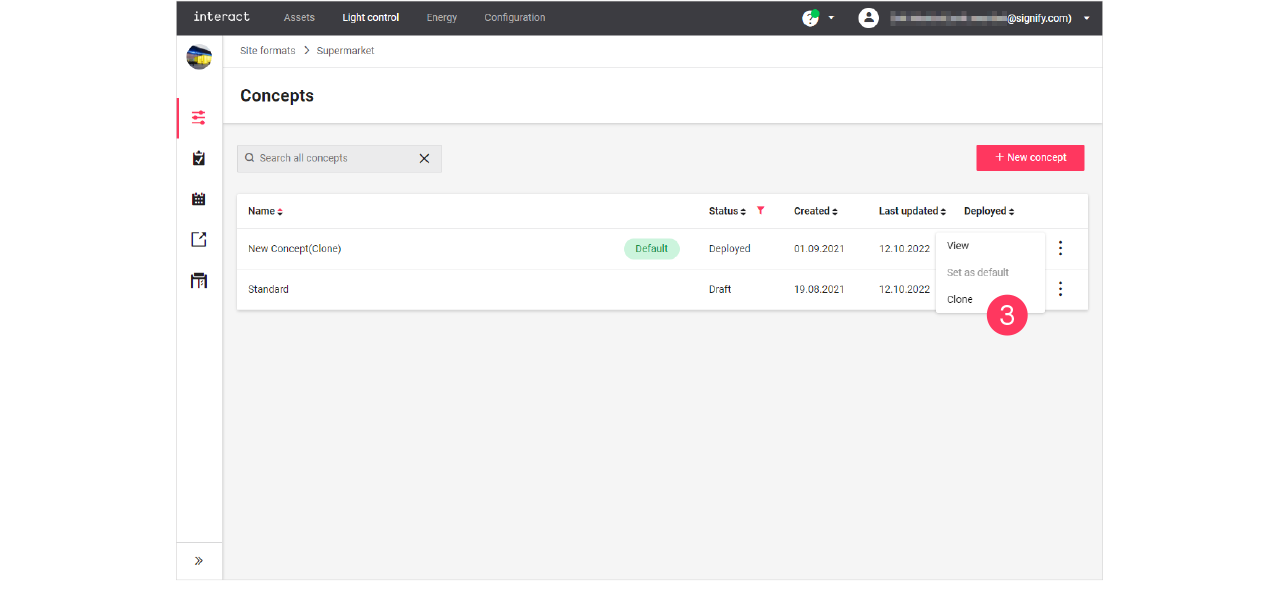
-
Enter the Name for the concept.
Click Create. The concept is now available with the status Draft. -
Click the concept and start editing.
Deploy a concept and schedule
Add concept to the deployment
-
In the menu, click Light control.
-
If applicable, in the dropdown Select a customer, select the customer to show the known formats.
-
Select a format.
-
Click Deployments (
). -
Click + New deployment.
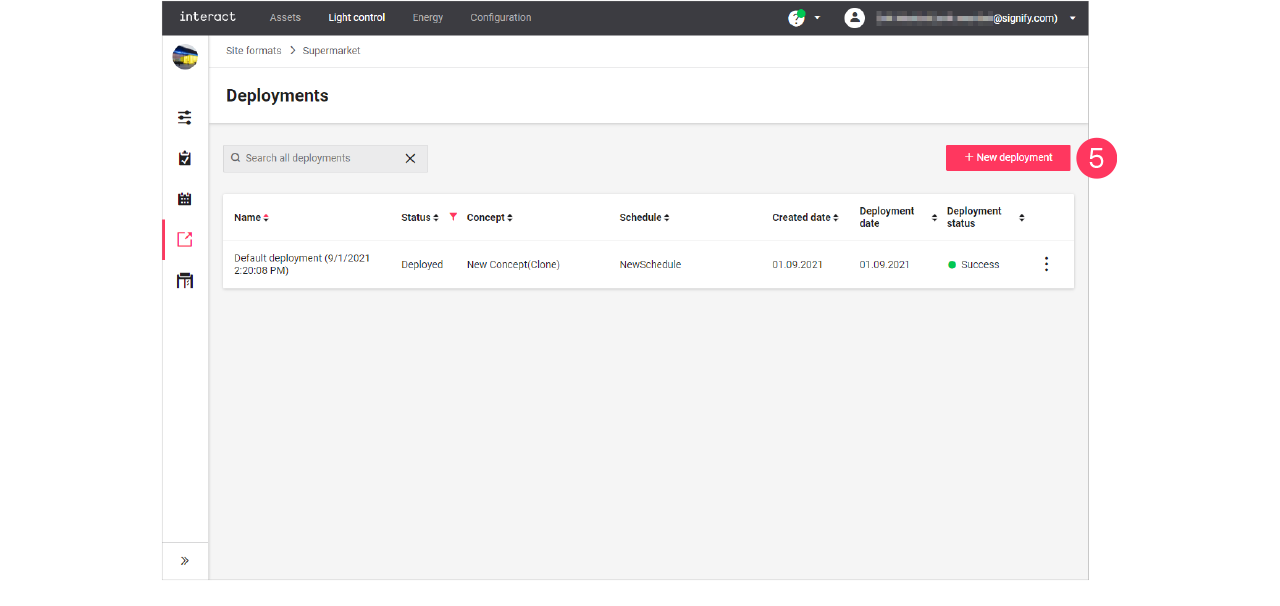
-
Follow the steps in the wizard, click Next for the next step:
-
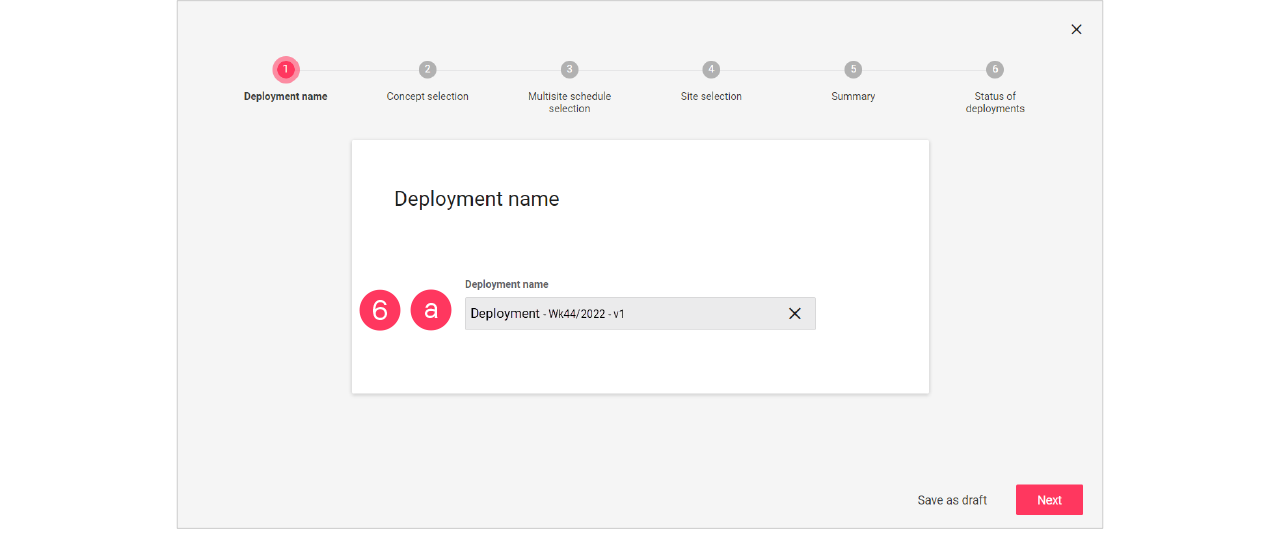
Enter the Name for the deployment.
-
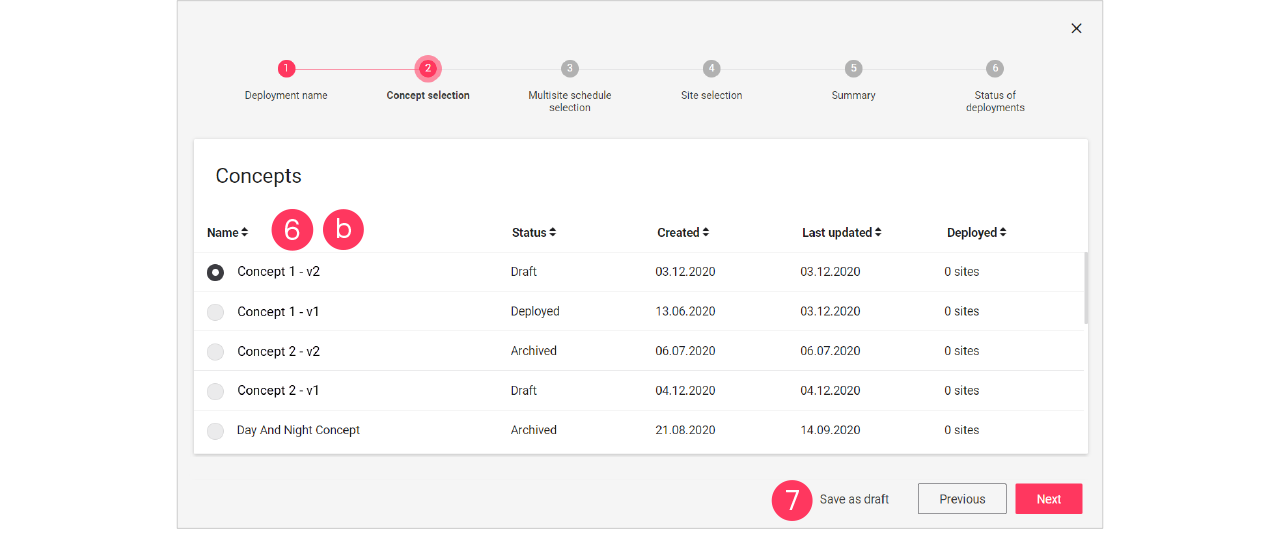
Select the Concept.
-
-
Click Save as draft to save the deployment for later use.
Add schedule and site to the deployment
-
In the menu, click Light control.
-
If applicable, in the dropdown Select a customer, select the customer to show the known formats.
-
Select a format.
-
Click Deployments (
). -
Click a deployment labeled with Draft to start editing.
-
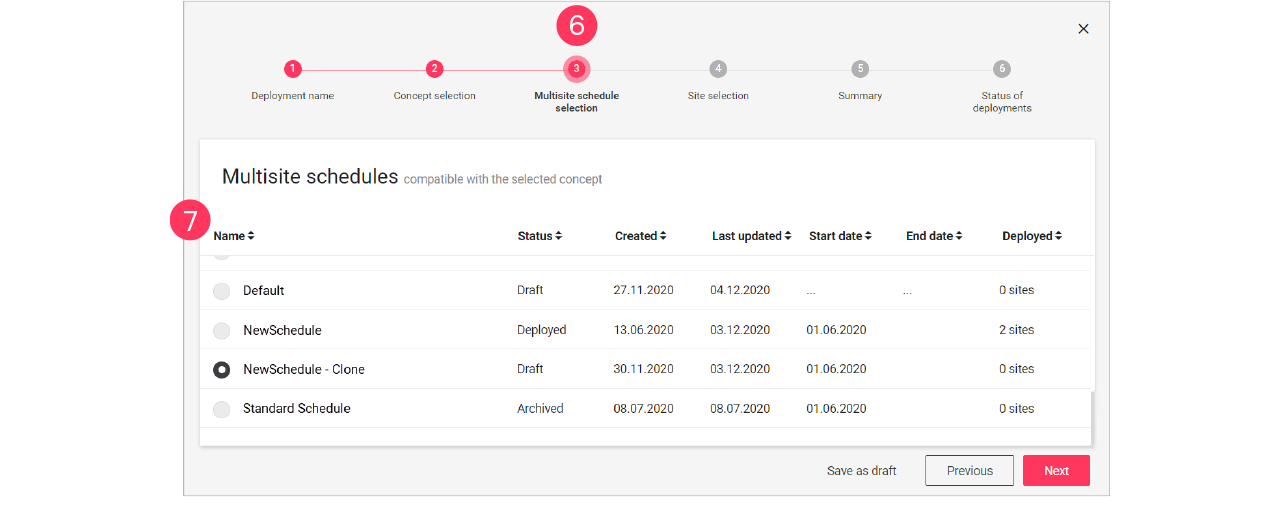
Click Next until you reach the step Multisite schedule selection.
-
Select the Schedule that must be applied in the deployment.
Click Next. -
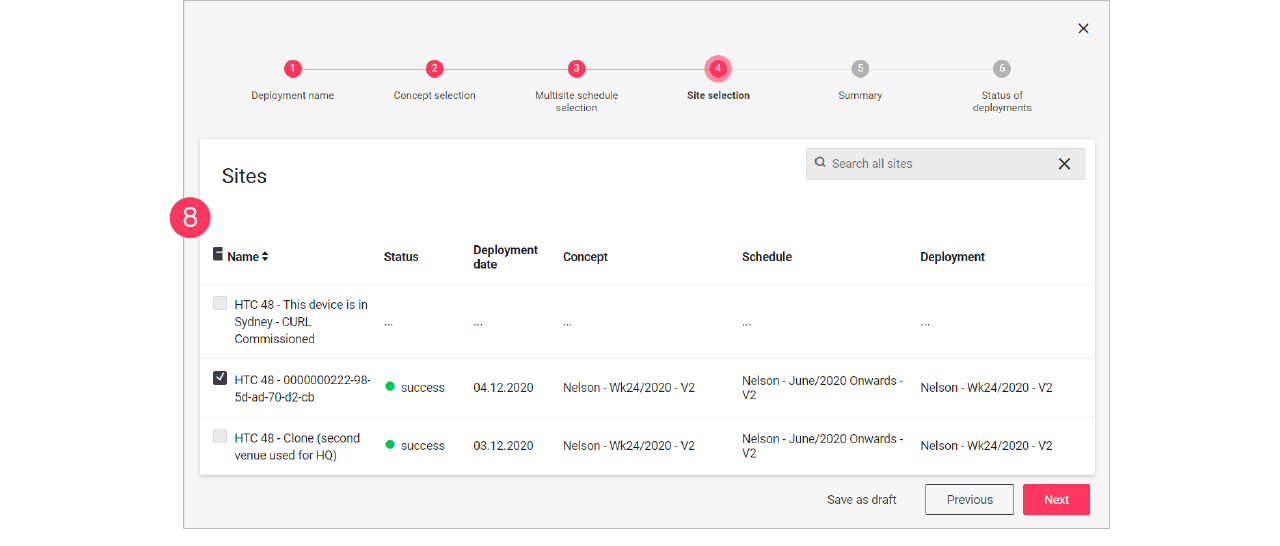
Select the Site(s) that must receive the deployment.
-
Click Save as draft to save the deployment for later use.
Finalize the deployment
-
In the menu, click Light control.
-
If applicable, in the dropdown Select a customer, select the customer to show the known formats.
-
Select a format.
-
Click Deployments (
). -
Click a deployment labeled with Draft to start editing.
-
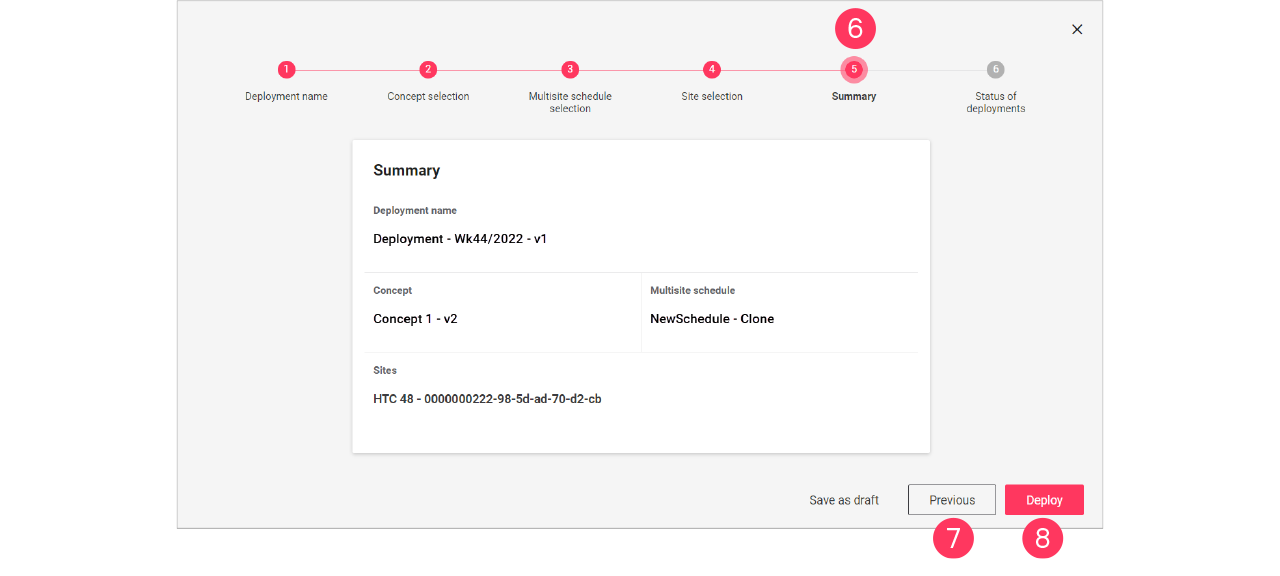
Click Next until you reach the step Summary.
-
Check if the concept, schedule, and sites chosen are correct. Click Previous to go back to correct.
Or: Click Deploy to start the deployment.